Email Setup
Desktop
Outlook
Thundebird
Mobile
Iphone
Android
AI Features
AI Suggestion
AI Product Tools
AI Customer Service
AI Positioning
AI Profile & AI Prompt Refine
Global AI Content Generator
AI Service Tools
AI FAQ
AI Handbook
Website Management
Login NEWPAGES Merchant System (NMS)
NMS Switch Language
Dashboard
Manage Products
Manage Service
Manage Photoalbum
Manage News / Promotion
Manage Ratings & Reviews
Manage Google Reviews
Profile Setting
NMS Merchant App
Support
Update Form
Report
NP Merchant Points
NMS Credit
Account Setting
Manage Career
Website Setting
Manage Download
Manage YouTube
Content Generator
Manage Others (Gallery)
Manage Testimonials
SEO Guide
On-page Optimization
e-Commerce (My Sales)
Dashboard
Order Management
Invoice
Shipping
Delivery List
Packaging & Picklist
Self Pick Up Setting
Shipping Setting
No available shipping method
Easyparcel
Lalamove
Tracking.my
Members
Marketing Tools
Voucher
Birthday Campaign
Discount Campaign
Add-on Deals
Mix & Match
Purchase Link
Broadcast Management
Product Sold & Customer Report
Ecommerce Mail Setting
Popup & Social Proof
Checkout Cart Setting
Website Header Setting
Additonal Charges Setting
Notification Setting
e-Commerce Process (Add to Cart Flow)
Plugins
Activate Plugin
Marketplace Synchronization
Tiktok Sync
Shopee Sync
Lazada Sync
Affiliate Marketing & Referral
Membership & Loyalty Program
Checkout & Payment Link
Quotation Pro
Sales Landing Page
Whatsapp Cart & Chat
Product Comparison
Social Media Synchronization
Facebook My Chatbot
Booking System
BusinessTag
Warranty System
E-Invoice Customer Profile
Facebook Live
PDF Encryptor
Background Removal
NEWPAGES Apps Management
CRM System
Mantap
FREE MANTAP
NEWPAGES Official API
Knowledge Tips
Email Issues
Webmail
Setup Signature
Delete Email
Reset Password
Adjust Spam Score
Set Autoresponders In Webmail
Admin Email System
Domain
Demonstration
Progressive Web App Ready (PWA)
Spam Expert - Domain Level
Dashboard
Incoming
Logs
Delivery Issue Log
Spam Quarantine
Domain Statistics
Train Messages
Incoming - Protection Settings
Recipient Allow List
Recipient Block List
Sender Allow List
Sender Block List
Allow List Filtering Rules
Block List Filtering Rules
Customise Actions
Filter Settings
Attachments Restrictions
Email Size Restrictions
Continuity
Delivery Queue - Incoming
Compose Email
My Settings
Select Categories
Email Setup
Desktop
Outlook
Thundebird
Mobile
Iphone
Android
AI Features
AI Suggestion
AI Product Tools
AI Customer Service
AI Positioning
AI Profile & AI Prompt Refine
Global AI Content Generator
AI Service Tools
AI FAQ
AI Handbook
Website Management
Login NEWPAGES Merchant System (NMS)
NMS Switch Language
Dashboard
Manage Products
Manage Service
Manage Photoalbum
Manage News / Promotion
Manage Ratings & Reviews
Manage Google Reviews
Profile Setting
NMS Merchant App
Support
Update Form
Report
NP Merchant Points
NMS Credit
Account Setting
Manage Career
Website Setting
Manage Download
Manage YouTube
Content Generator
Manage Others (Gallery)
Manage Testimonials
SEO Guide
On-page Optimization
e-Commerce (My Sales)
Dashboard
Order Management
Invoice
Shipping
Delivery List
Packaging & Picklist
Self Pick Up Setting
Shipping Setting
No available shipping method
Easyparcel
Lalamove
Tracking.my
Members
Marketing Tools
Voucher
Birthday Campaign
Discount Campaign
Add-on Deals
Mix & Match
Purchase Link
Broadcast Management
Product Sold & Customer Report
Ecommerce Mail Setting
Popup & Social Proof
Checkout Cart Setting
Website Header Setting
Additonal Charges Setting
Notification Setting
e-Commerce Process (Add to Cart Flow)
Plugins
Activate Plugin
Marketplace Synchronization
Tiktok Sync
Shopee Sync
Lazada Sync
Affiliate Marketing & Referral
Membership & Loyalty Program
Checkout & Payment Link
Quotation Pro
Sales Landing Page
Whatsapp Cart & Chat
Product Comparison
Social Media Synchronization
Facebook My Chatbot
Booking System
BusinessTag
Warranty System
E-Invoice Customer Profile
Facebook Live
PDF Encryptor
Background Removal
NEWPAGES Apps Management
CRM System
Mantap
FREE MANTAP
NEWPAGES Official API
Knowledge Tips
Email Issues
Webmail
Setup Signature
Delete Email
Reset Password
Adjust Spam Score
Set Autoresponders In Webmail
Admin Email System
Domain
Demonstration
Progressive Web App Ready (PWA)
Spam Expert - Domain Level
Dashboard
Incoming
Logs
Delivery Issue Log
Spam Quarantine
Domain Statistics
Train Messages
Incoming - Protection Settings
Recipient Allow List
Recipient Block List
Sender Allow List
Sender Block List
Allow List Filtering Rules
Block List Filtering Rules
Customise Actions
Filter Settings
Attachments Restrictions
Email Size Restrictions
Continuity
Delivery Queue - Incoming
Compose Email
My Settings
How to Activate and Setup Your BusinessTag
January 6, 2026Section 1: Introduction
BusinessTag is a NFC-enabled Digital Business Card. Your customer/friend can save your contact to their phone with just 1 simple Tap. BusinessTag is more efficient, time-saver, and paperless compared to traditional business cards. Lower cost and will be the future business trend.
In this topic, you will learn how to activate and setup your BusinessTag.
In this topic, you will learn how to activate and setup your BusinessTag.
Section 2: How to Activate BusinessTag
Step 1: When you receive the BusinessTag, please activate it to start using it.
You have two ways to activate it:
or
2. Scan the QR code on the card (for Non- NFC phone)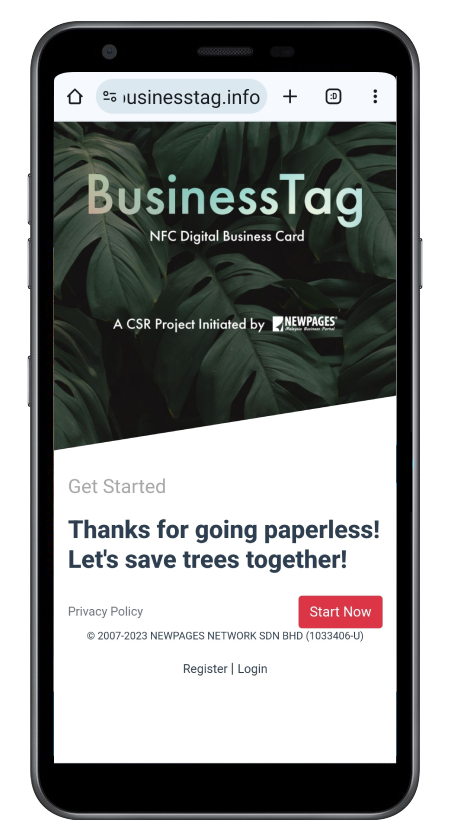
Step 2: You will access to www.businesstag.info > Click "Start Now"
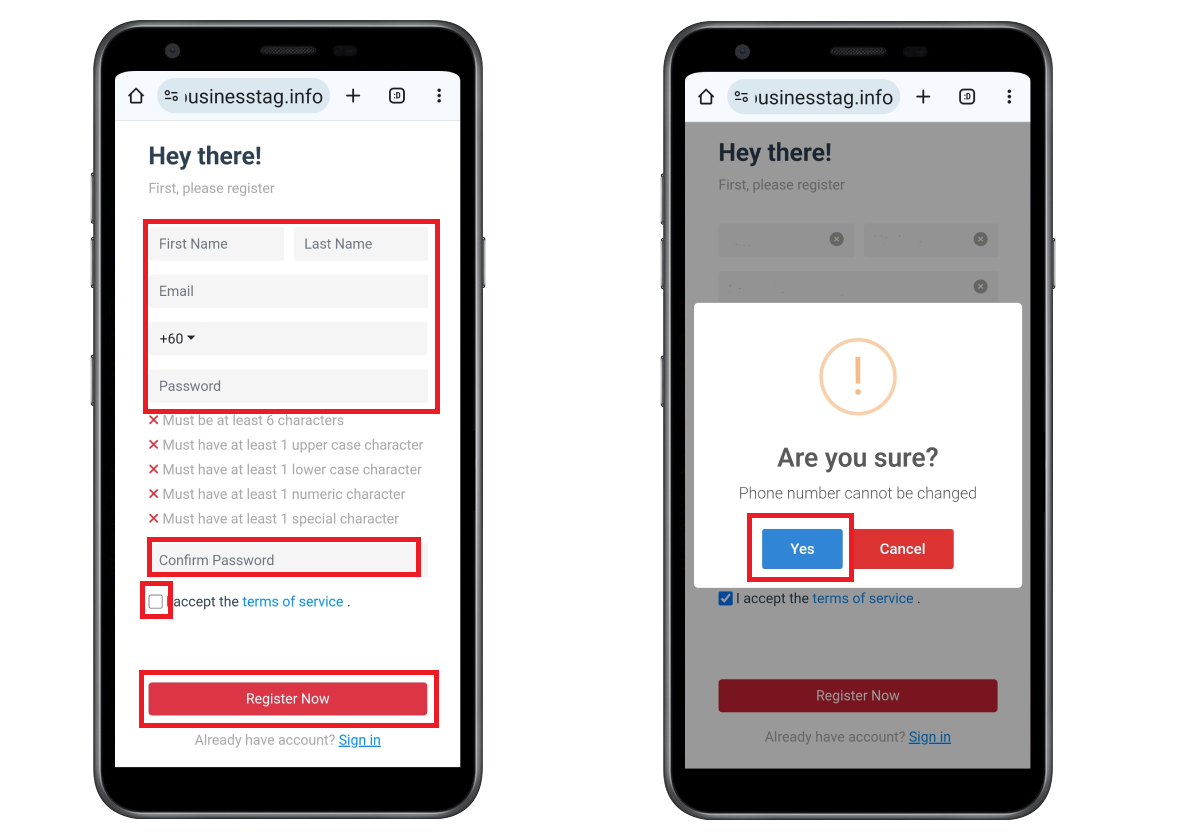
Step 3: Fill in the required information (Please make sure the phone number is correct) > Read and tick "I accept the terms of service. > Register Now > Click Yes
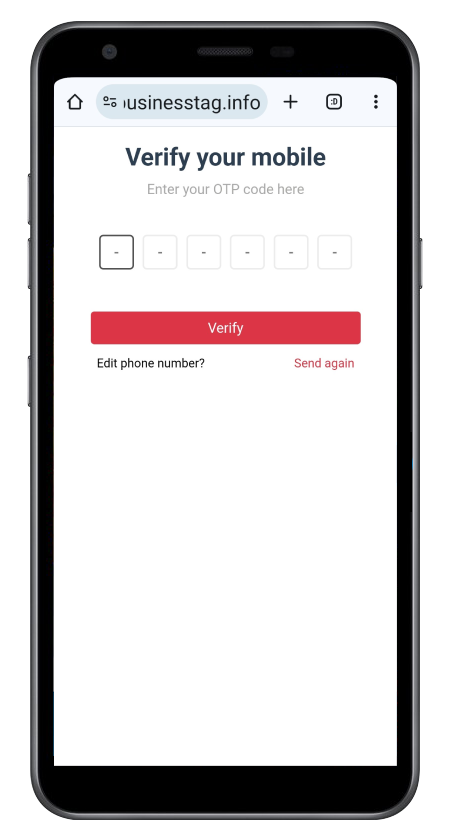
Step 4: Verify OTP will be sent to the phone number > Enter the OTP number > Click "Verify"
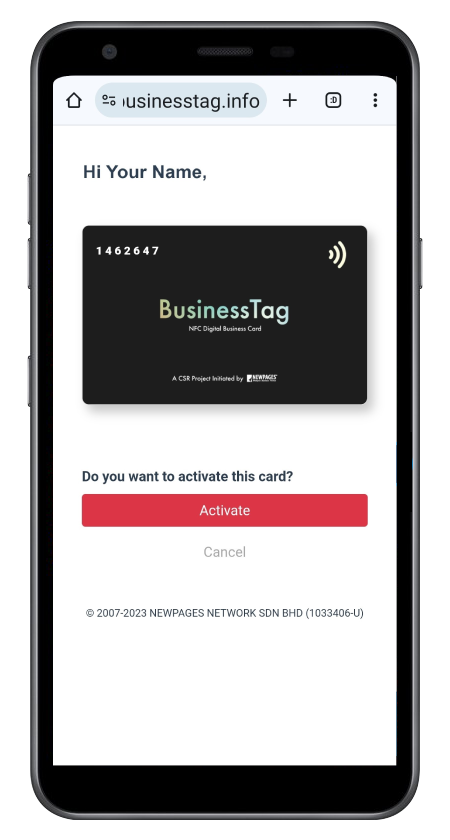
Step 5: Click "Activate"
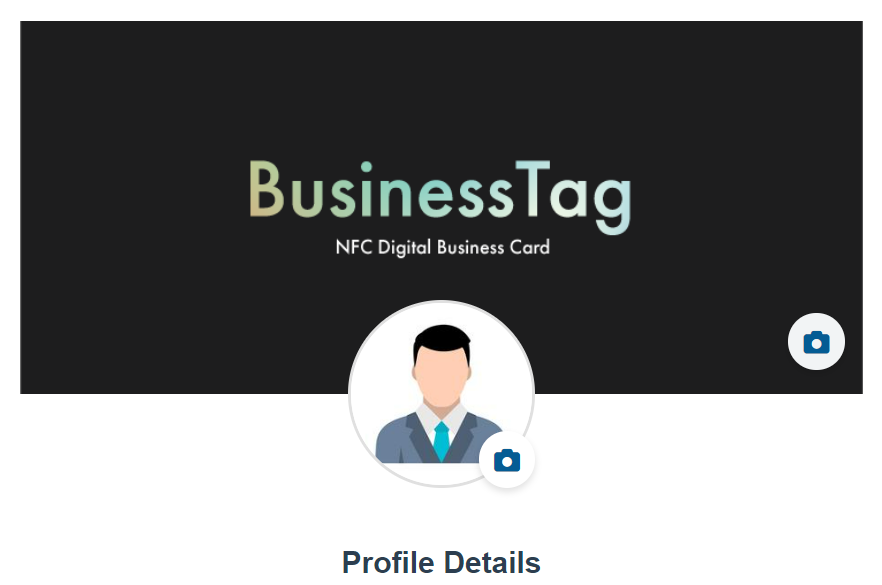
Step 6: You can click to upload a banner and your profile picture
* Please select an image file types as png, jpg, jpeg.
* Please select an image smaller than 10MB.
* Please select an image file types as png, jpg, jpeg.
* Please select an image smaller than 10MB.
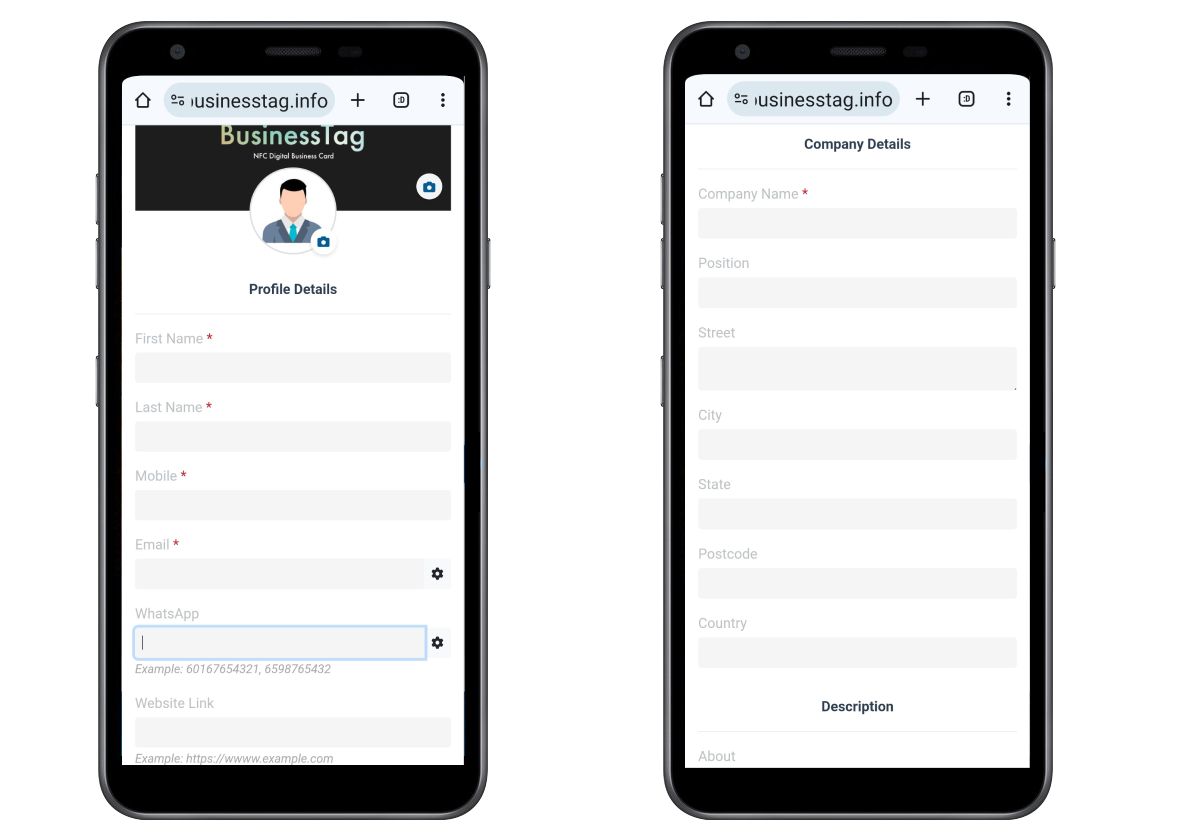
Step 7: Fill in your profile details, company details & description
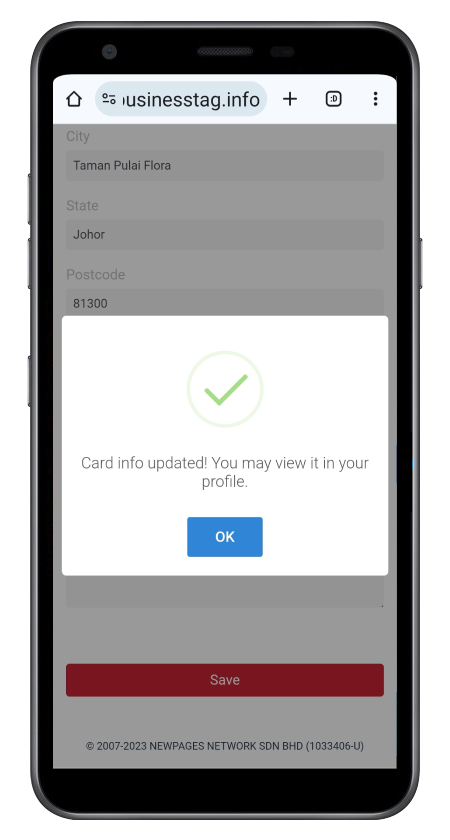
Step 8: Click "Save" and OK
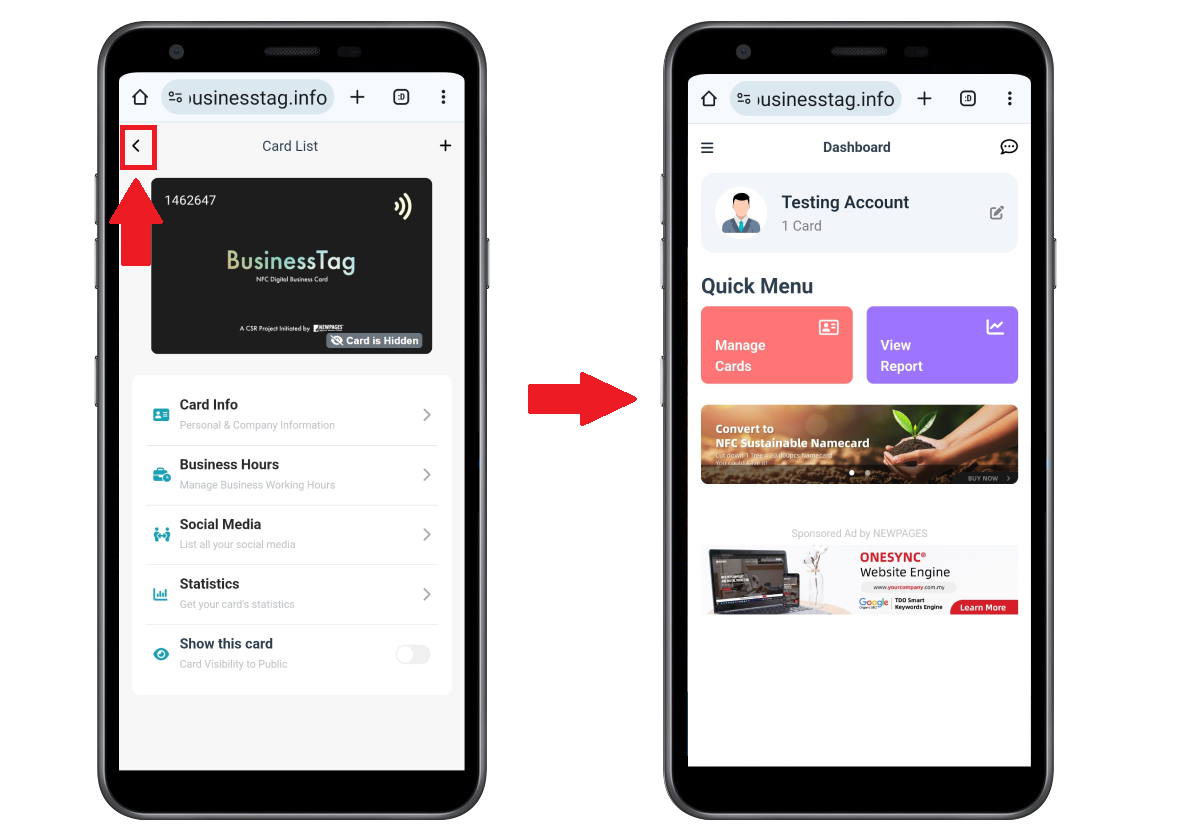
You can click < to go dashboard (https://app.businesstag.info/dashboard)
Inside the dashboard, you can edit your profile information by clicking on
Click on to change your password or logout.
Click on to view Binding Request notification
Learn more about How to Bind and Unbind Card
Inside the dashboard, you can edit your profile information by clicking on
Click on to change your password or logout.
Click on to view Binding Request notification
Learn more about How to Bind and Unbind Card
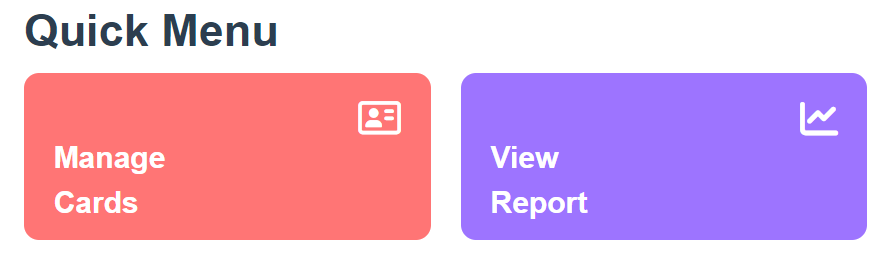
Click on Quick menu - Manage Cards to manage your card info
Click on Quick Menu - View Report to view your card statistics
Click on Quick Menu - View Report to view your card statistics
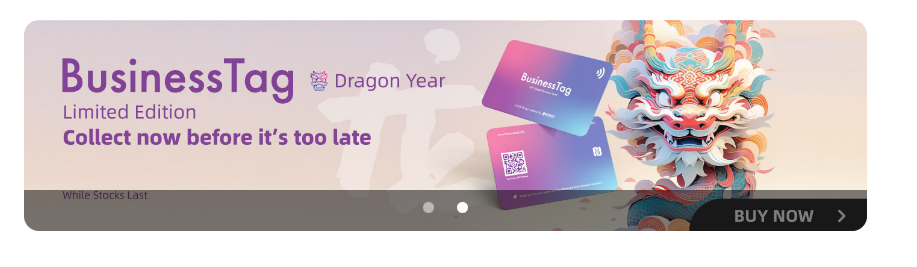
Click on this banner to purchase a BusinessTag in Shopee or Lazada store
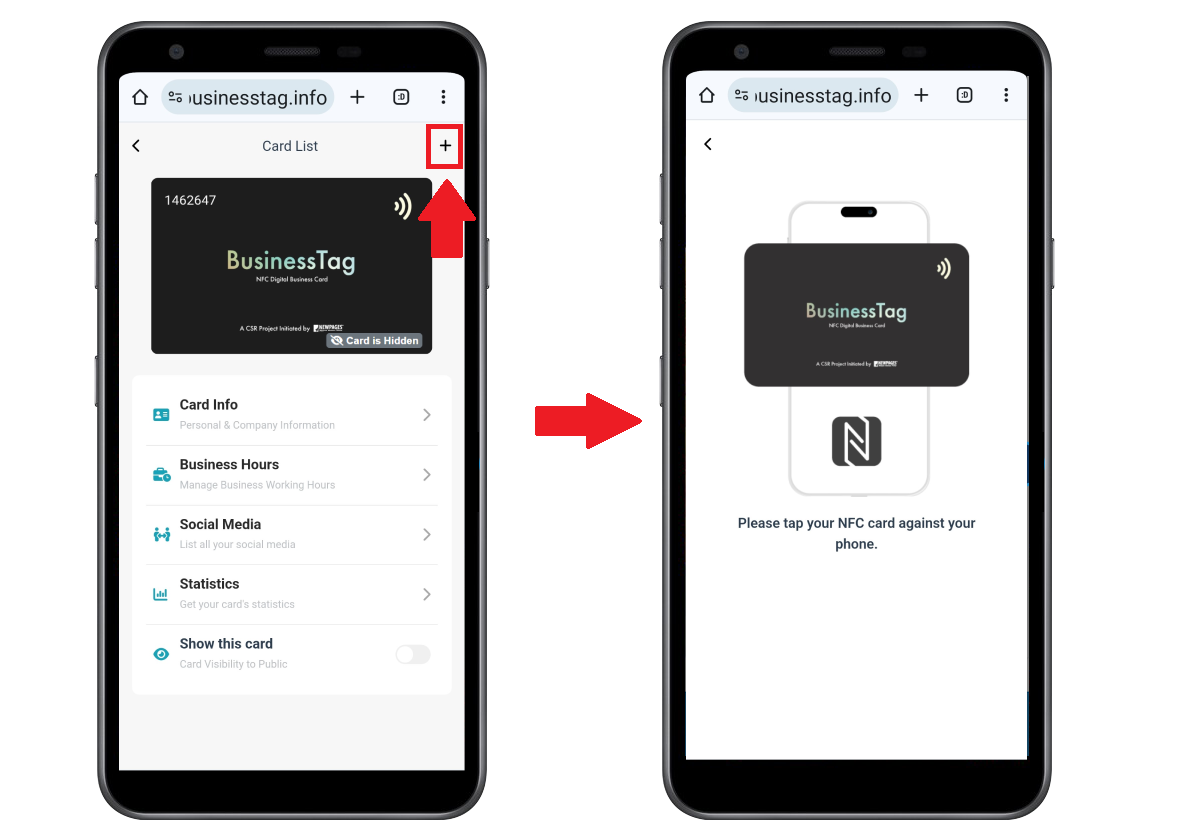
You can click + to tap your BusinessTag against your phone
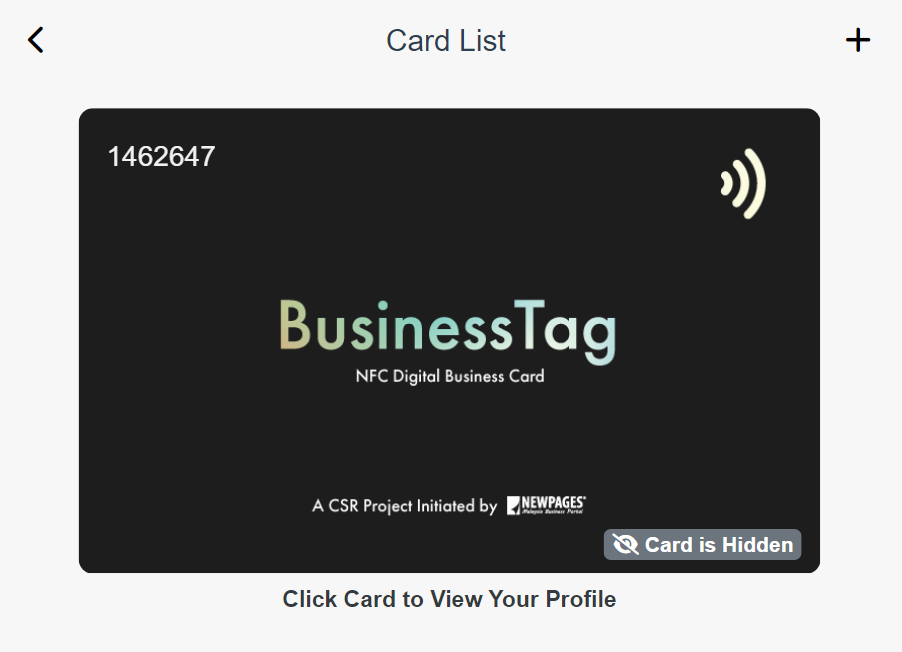
If your card is hidden, you are unable to view your profile.
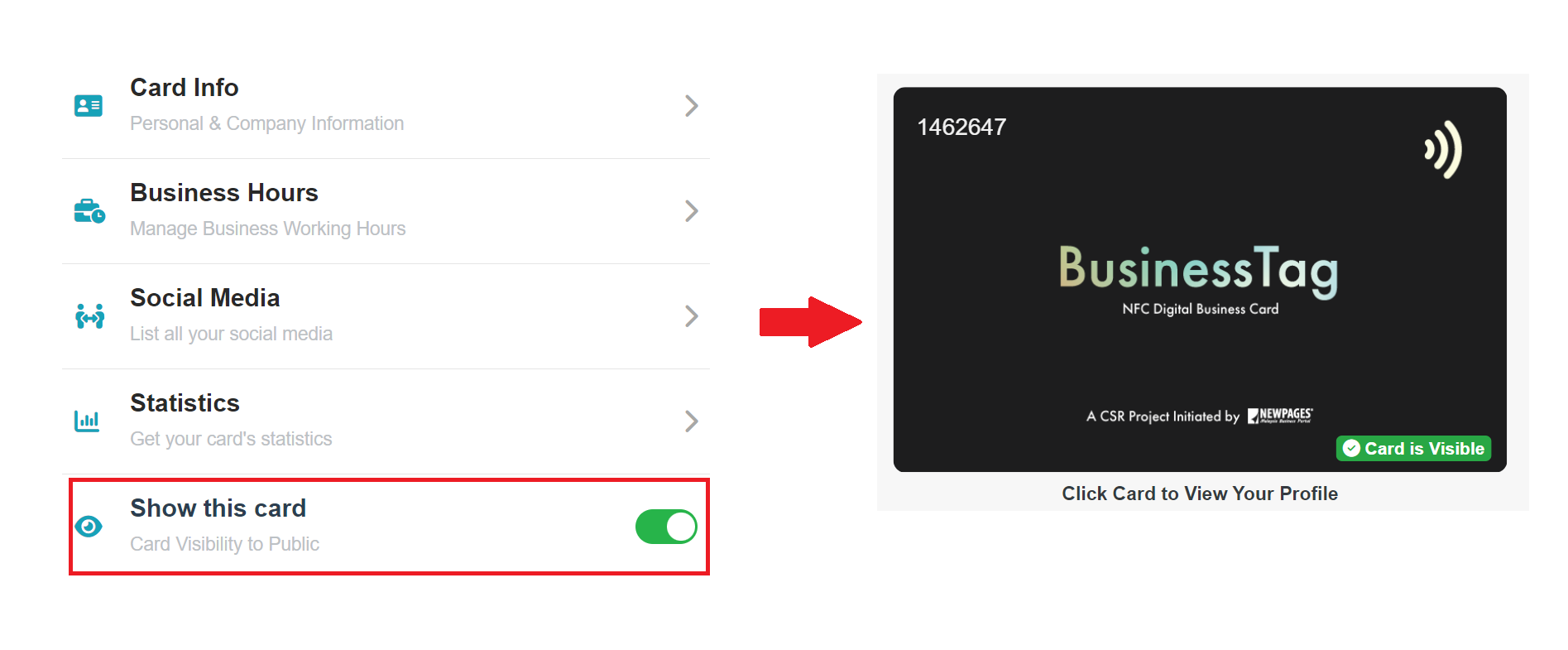
You need to turn on "Show this card" button in order to view your profile.
Section 3: How to Manage Your BusinessTag
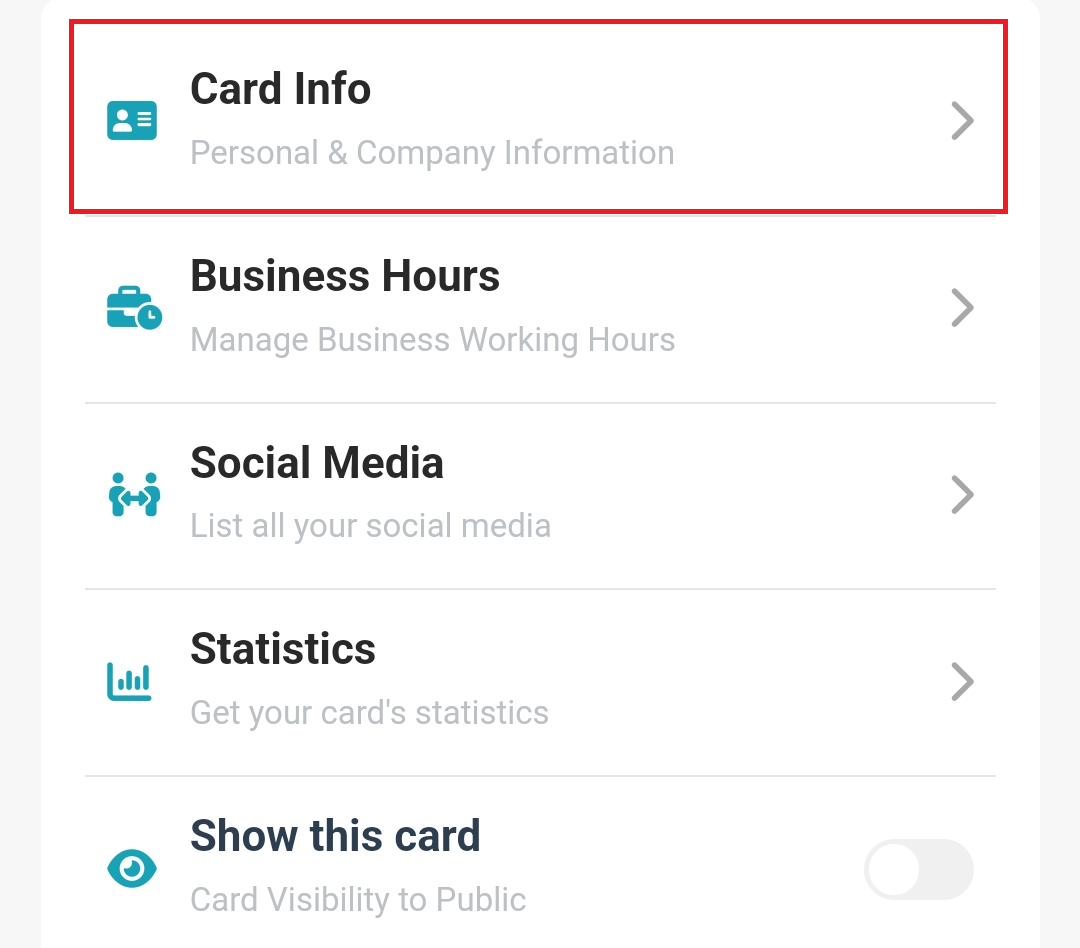
You can click Card Info to edit your personal and company information.
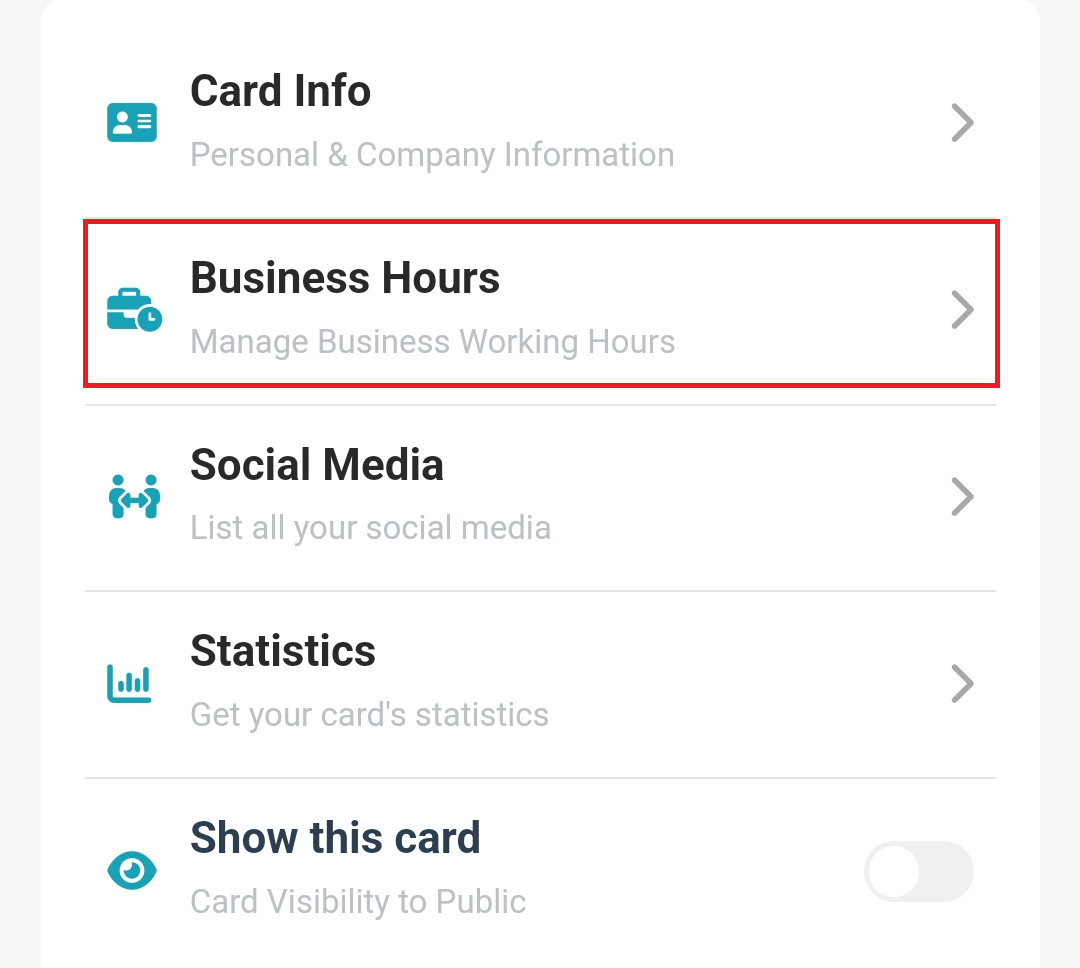
Click Business Hours to add and manage your company business hours.
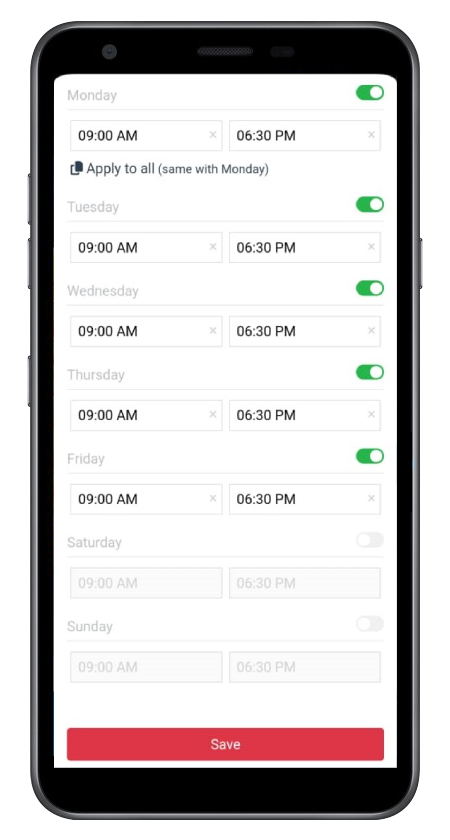
Step 1: Select time > Click "Apply to all" if all the business hours same as Monday
Step 2: Turn on the button for working days
Step 3: Click "Save"
Step 2: Turn on the button for working days
Step 3: Click "Save"
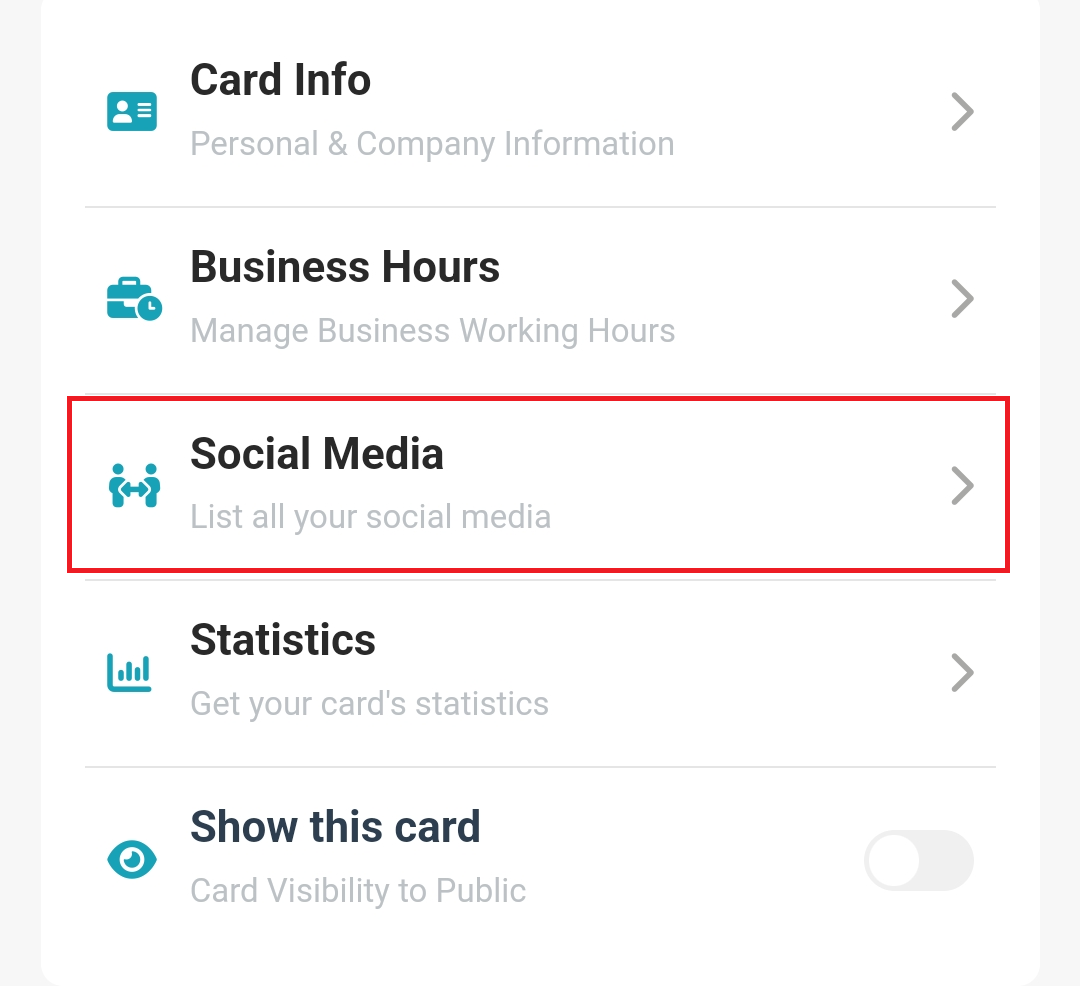
You can click Social Media to list all your social media
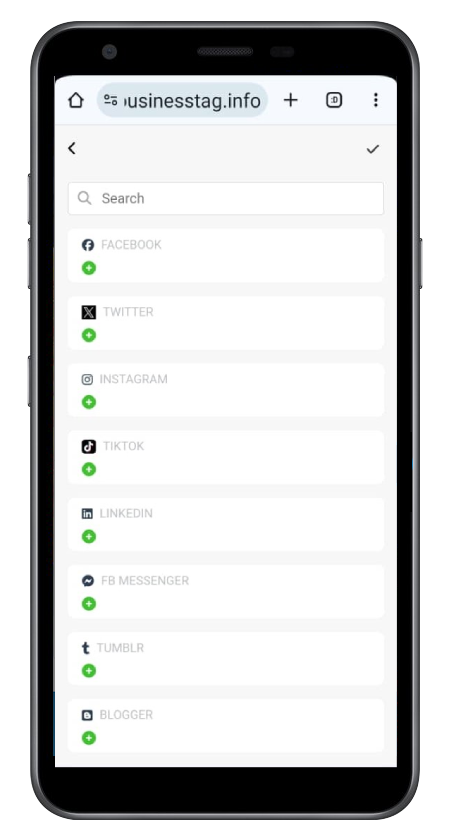
Click + and insert the url, once done, click "Save"
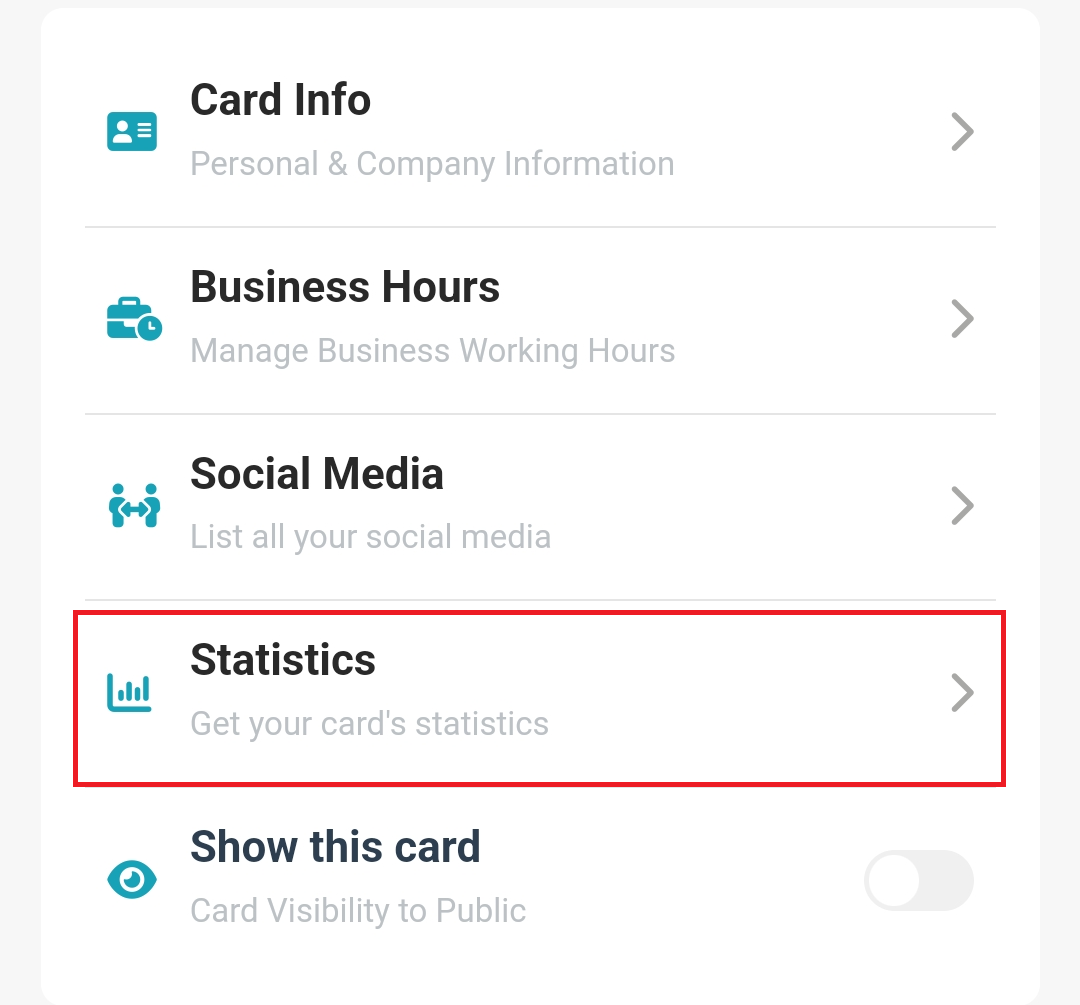
You can click Statistics to view your card's statistics
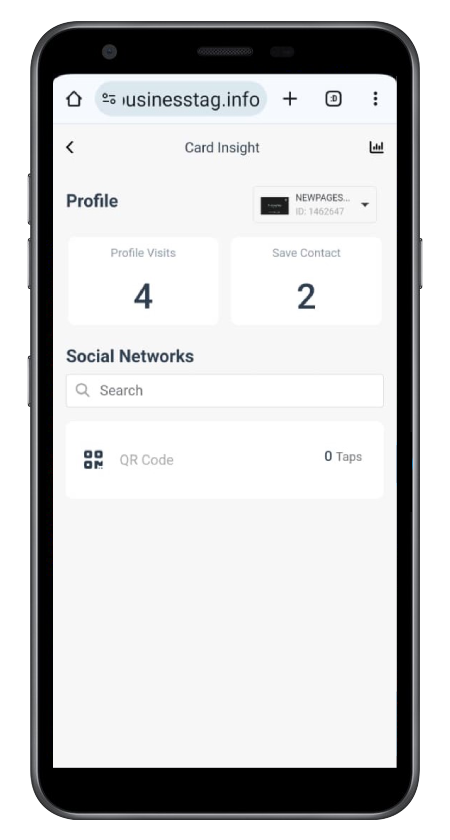
You will be able to see the number of profile visits, saved contacts, and the number of taps on QR codes & social networks.